


October 20, 2022
Granting access to a Google Ads account may be necessary in various situations, such as when you start working with a digital marketing agency, add a new marketer to your team, or need to provide access to an external contractor.
How To Share Access To Your Google Ads Account
October 20, 2022
Granting access to a Google Ads account may be necessary in various situations, such as when you start working with a digital marketing agency, add a new marketer to your team, or need to provide access to an external contractor.
newage. blog
You don’t need to share your Google Account login credentials or password. Google Ads allows you to securely grant access to individual users or agencies while you remain the owner of the advertising account.
There are two main ways to grant access to a Google Ads account. The first is through a Manager Account (MCC), which is the standard method digital marketing agencies use to manage their clients’ advertising accounts. The second is by inviting an individual user, allowing you to grant access to a specific person via their email address and assign the appropriate permission level.
In this guide, we’ll walk you through how to grant access to an agency or an employee, explain the available permission levels, and show you how to revoke access at any time if needed.
When Should You Grant Access to a Google Ads Account?
Granting access to a Google Ads account is a common requirement in a variety of business situations. The most common scenarios include:
- starting a partnership with a digital marketing agency that will create, optimize, and manage your advertising campaigns;
- adding a new marketer or PPC specialist to your team who needs access to manage your ads;
- providing temporary access to a freelancer, consultant, or external contractor for specific tasks.
Regardless of who you grant access to, your company remains the owner of the Google Ads account. You can change a user’s permission level or revoke their access at any time without affecting your campaign data, account history, or advertising settings.
Method 1. How to Grant a Digital Marketing Agency Access to Google Ads via a Manager Account
If you’re starting to work with a digital marketing agency, the best way to grant access is through a Manager Account (MCC). This is the official account management method supported by Google Ads. Your company remains the owner of the advertising account, and you can revoke the agency’s access at any time.
Step 1. Find Your Google Ads Account ID
Sign in to your Google Ads account. At the top of the interface, you’ll see your Google Ads Account ID — a unique 10-digit number in the following format: 123-456-7890.
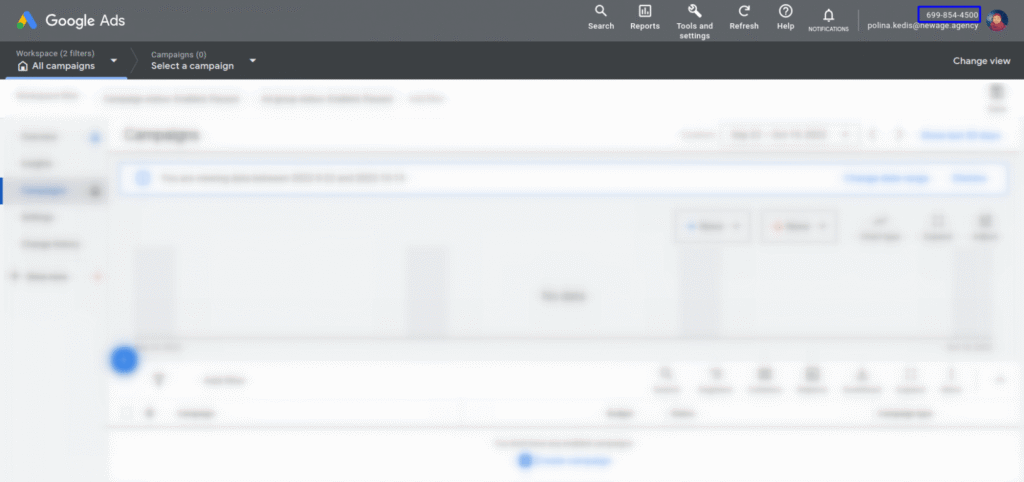
Copy this number and send it to your agency’s account manager. The agency will use your Account ID to send a request to manage your Google Ads account.
Step 2. Wait for the Agency’s Access Request
Once the agency receives your Google Ads Account ID, it will send an access request through its Manager Account. In most cases, your agency representative will let you know once the request has been submitted.
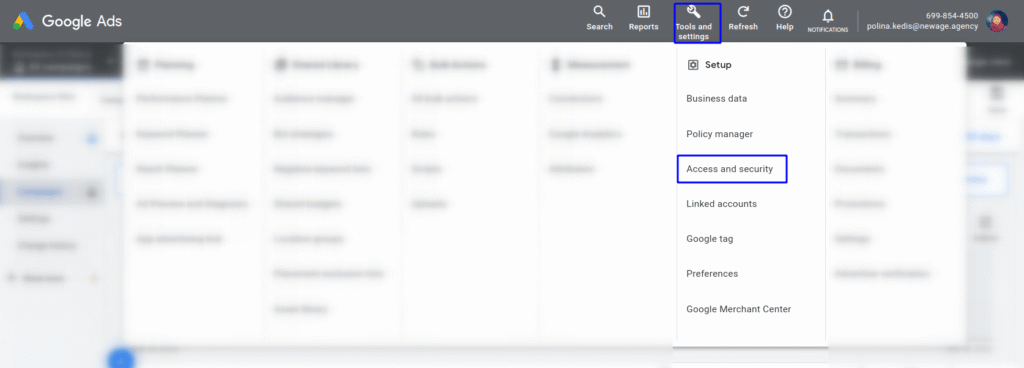
Step 3. Approve the Access Request in Google Ads
After receiving the request, open Admin → Access and security → Managers in your Google Ads account and approve the agency’s access request.
Once the request is approved, the agency will immediately gain access to manage your Google Ads account.
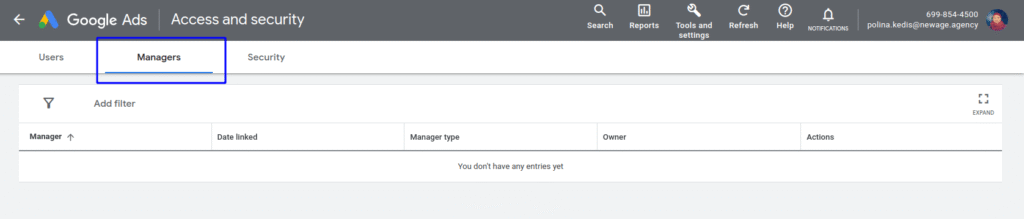
What Can an Agency Do After Access Is Granted?
Once you approve the request, the agency’s specialists will be able to:
- create and launch new advertising campaigns;
- edit and optimize existing campaigns;
- view campaign performance and advertising statistics;
- generate reports;
- manage conversions, audiences, and other Google Ads features based on the permissions granted.
Granting access through a Manager Account does not transfer ownership of your Google Ads account. Your company remains the account owner, and you can modify or revoke the agency’s access at any time without affecting your campaigns, historical data, or account settings.
Method 2. How to Grant an Individual User Access to Google Ads
If you need to give an employee, marketer, or contractor access to your Google Ads account, you can do so by sending a user invitation. In this case, access is linked to the person’s Google email address, and you can choose the appropriate permission level.
Step 1. Open the Access and Security Section
Sign in to your Google Ads account, open the Admin menu, and navigate to Access and security.
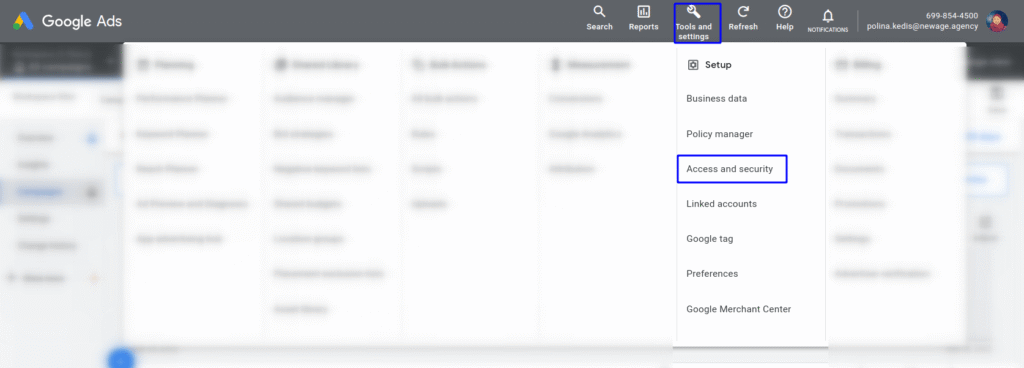
Step 2. Add a New User
Click the + (Add user) button, enter the Google email address of the person you want to grant access to, and select the appropriate permission level.
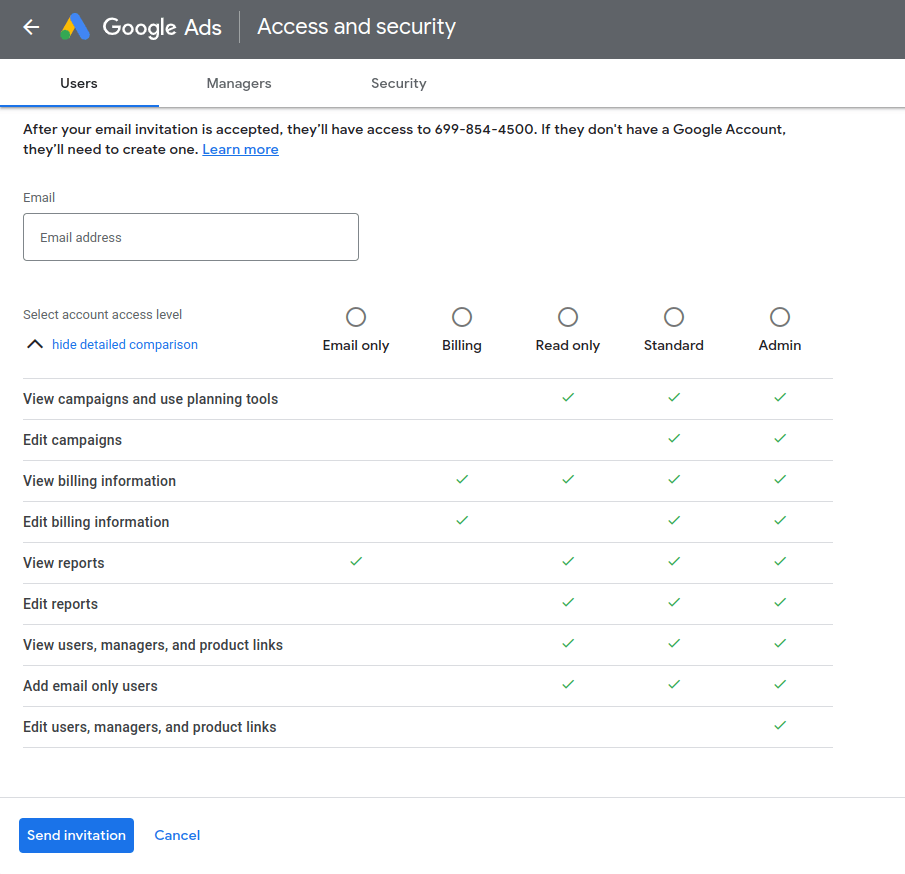
Step 3. Send the Invitation
After selecting the appropriate permission level, click Send invitation. The user will receive an email invitation and, once they accept it, will be able to access and work with your Google Ads account.
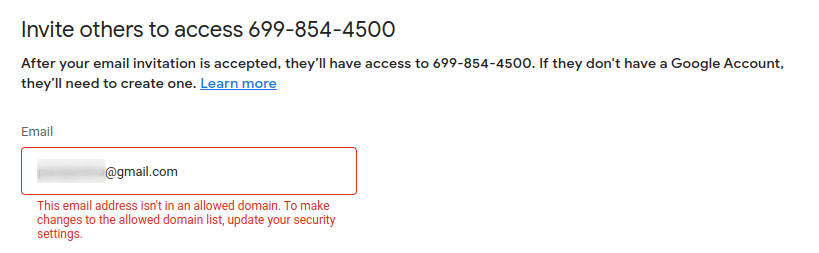
Note: If your organization uses Google Workspace, you may see the following message: “This email address isn’t from an allowed domain. To change the list of allowed domains, update your security settings.” If this happens, contact your Google Workspace administrator or your company’s IT administrator to update the domain security settings.
Google Ads Permission Levels
When inviting a new user to your Google Ads account, you can choose a permission level based on the tasks they need to perform.
| Permission Level | What It Allows |
|---|---|
| Admin | Full access to the Google Ads account, including user management and account settings. |
| Standard | Create, edit, and manage advertising campaigns, as well as view performance data and reports. |
| Read only | View campaigns, performance data, and reports without the ability to make changes. |
| Email only | Receive Google Ads notifications and account alerts without access to manage the account. |
As a best practice, grant users only the permissions they need to perform their work. You can change a user’s permission level or revoke their access at any time if their responsibilities change.
How to Revoke Access to a Google Ads Account
If you no longer work with an employee or a digital marketing agency, you can revoke their access to your Google Ads account at any time. Removing access does not affect your campaigns, performance data, or account history—it only removes that user’s ability to manage the account.
Step 1. Open the Access and Security Section
Sign in to your Google Ads account, open the Admin menu, and navigate to Access and security.
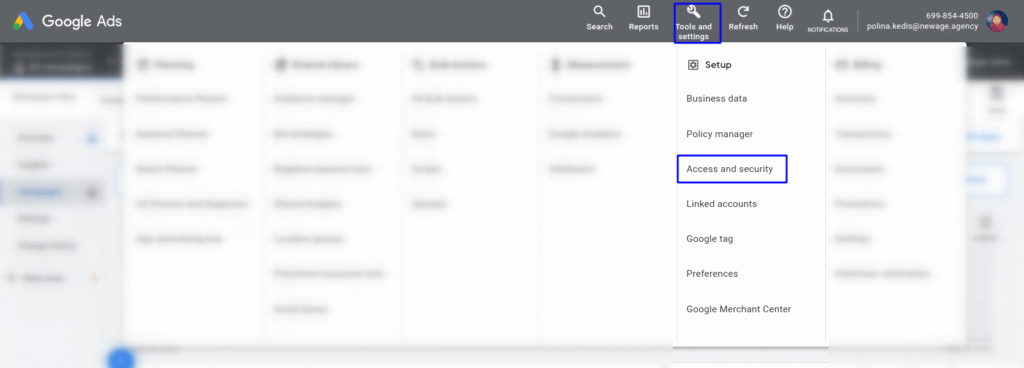
Step 2. Revoke Access
The process depends on whether you’re removing access for a Manager Account or an individual user:
- For a digital marketing agency: Open the Managers tab, locate the appropriate Manager Account, and unlink it from your Google Ads account.
- For an individual user: Find the user’s email address in the Users list, then click Remove access in the Actions column.
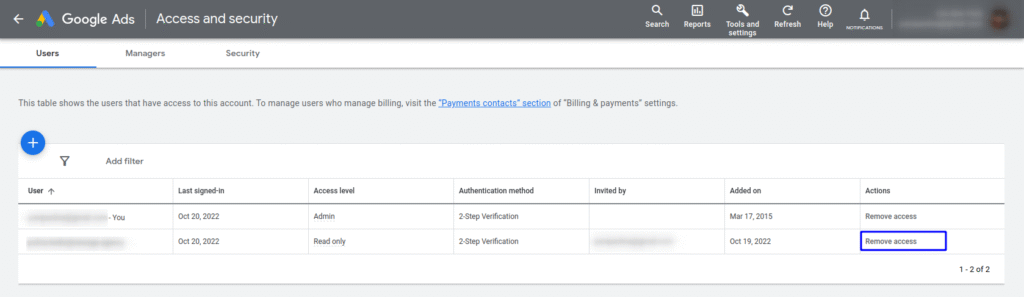
After access is revoked, the user or agency will no longer be able to view your account’s performance data, edit campaigns, or create new advertising campaigns on your behalf. If needed, you can grant them access again at any time.
Common Issues When Granting Access to Google Ads
Even when all the steps have been completed correctly, a user or agency may still be unable to access the Google Ads account. Below are the most common issues and how to resolve them.
The Agency Cannot See the Google Ads Account
If the agency cannot see the account in its Manager Account after sending the request, check whether:
- the correct Google Ads Account ID was provided;
- the request was approved under Access and security → Managers;
- you are signed in to the Google account that has Admin access;
- the request was not accidentally rejected or canceled.
You should also ask the agency to confirm that the request was sent from the correct Manager Account.
The Invitation Email Doesn’t Arrive
If the user does not receive the Google Ads invitation email, one of the following may be the cause:
- the wrong email address was entered when sending the invitation;
- the email was filtered into the Spam or Promotions folder;
- the invitation was revoked before it was accepted;
- your organization’s email security or spam filter blocked messages from Google.
In this case, check the invitation status under Access and security and, if necessary, send the invitation again.
Unable to Invite a User
In some cases, Google Ads prevents you from adding a user and displays a message indicating that the email address does not belong to an allowed domain.
This is most commonly caused by your organization’s Google Workspace security settings. Some companies allow users to be added only from approved domains. To resolve this issue, contact your Google Workspace administrator or your company’s IT administrator and ask them to review the domain access settings.
Is It Safe to Grant an Agency Access to Your Google Ads Account?
Yes. Granting access through a Manager Account is the official and secure method recommended by Google Ads for working with a digital marketing agency.
When you connect an agency through a Manager Account:
- your company remains the owner of the Google Ads account;
- the agency does not receive your Google Account username or password;
- the agency cannot take ownership of your Google Ads account or transfer ownership to another party;
- you can change or revoke the agency’s access at any time.
All of your campaigns, performance data, account settings, and historical data remain in your Google Ads account, even after your partnership with the agency ends.
If you’re looking for a team to help you get the most out of Google Ads, the specialists at newage. can help you set up and optimize advertising campaigns, implement accurate conversion tracking, and build a transparent analytics system. Contact us to maximize the return on your advertising investment.
FAQ: Frequently Asked Questions About Google Ads Account Access
How do I grant an agency access to my Google Ads account?
To allow a digital marketing agency to manage your advertising campaigns, simply provide your Google Ads Account ID. The agency will then send an access request through its Manager Account, which you can approve in your Google Ads account settings.
What’s the difference between Manager Account access and inviting a user?
A Manager Account (also known as an MCC account) allows a digital marketing agency to manage your Google Ads account without creating separate user accounts for each specialist. Inviting a user, on the other hand, grants access directly to a specific individual using their Google email address.
What permission levels are available in Google Ads?
Google Ads offers several permission levels, including Admin, Standard, and Read only. Each permission level determines what actions a user can perform within the Google Ads account.
How do I revoke access to a Google Ads account?
Open Access and security, locate the user or Manager Account you want to remove, and revoke their access. Once access is removed, they will no longer be able to manage your advertising campaigns.
Is it safe to grant an agency access to Google Ads?
Yes. As long as you use Google Ads’ official access management system, granting an agency access is safe. Your company remains the owner of the Google Ads account, and you can change permission levels or revoke access at any time.


Get deeper into digital!
Subscribe to the newage. digital digest and receive exclusive bonus content


At our advertising agency, we provide a full range of services to help you reach your target audience and achieve your marketing goals. We can develop an effective advertising campaign for you, including print, radio, TV, and online ads. We also offer market research, media planning, and brand consulting services. Our team of experts will work closely with you to understand your needs and create a customized solution that meets your unique requirements.